Changelog

Follow new updates and improvements to SharkSignals.

Performance Dashboards, Rebuilt
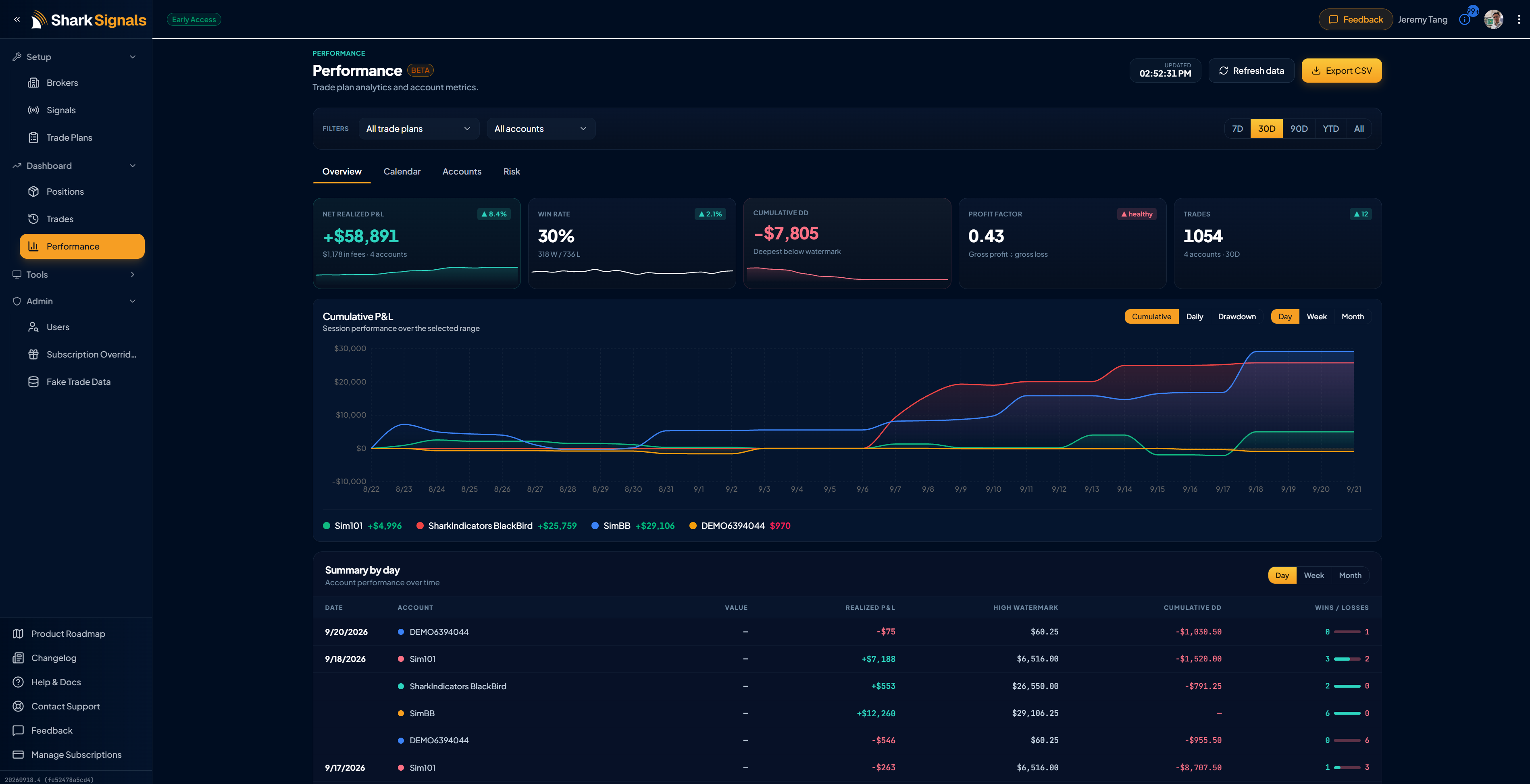
Performance got a full rebuild, now organized into four views:

  • Overview — net realized P&L, win rate, cumulative drawdown, profit factor, and trade count at a glance, plus a cumulative P&L chart broken out by account.

  • Calendar — day-by-day P&L in a monthly grid, with weekly rollups and a monthly summary (trades, daily win rate, average win/loss day).

  • Risk — a new view: peak watermark, worst drawdown, recovery factor, days underwater, and an underwater curve showing how deep and how long each drawdown ran.

  • Accounts — per-account cards with profit factor, win rate, fees, and high watermark side by side.

Closed trades also got their own dedicated Trades page — searchable and filterable by win/loss, long/short, and date range, with entry/exit prices, return %, and exit reason (stop loss, take profit, manual, flatten) per trade.

Both Performance and Trades now support CSV export, and filters (trade plan, account, date range) stay put as you move between tabs instead of resetting.

Calendar View

Spot your good days and bad days by eye, so you can catch patterns like "Mondays are always rough" before they cost you more.
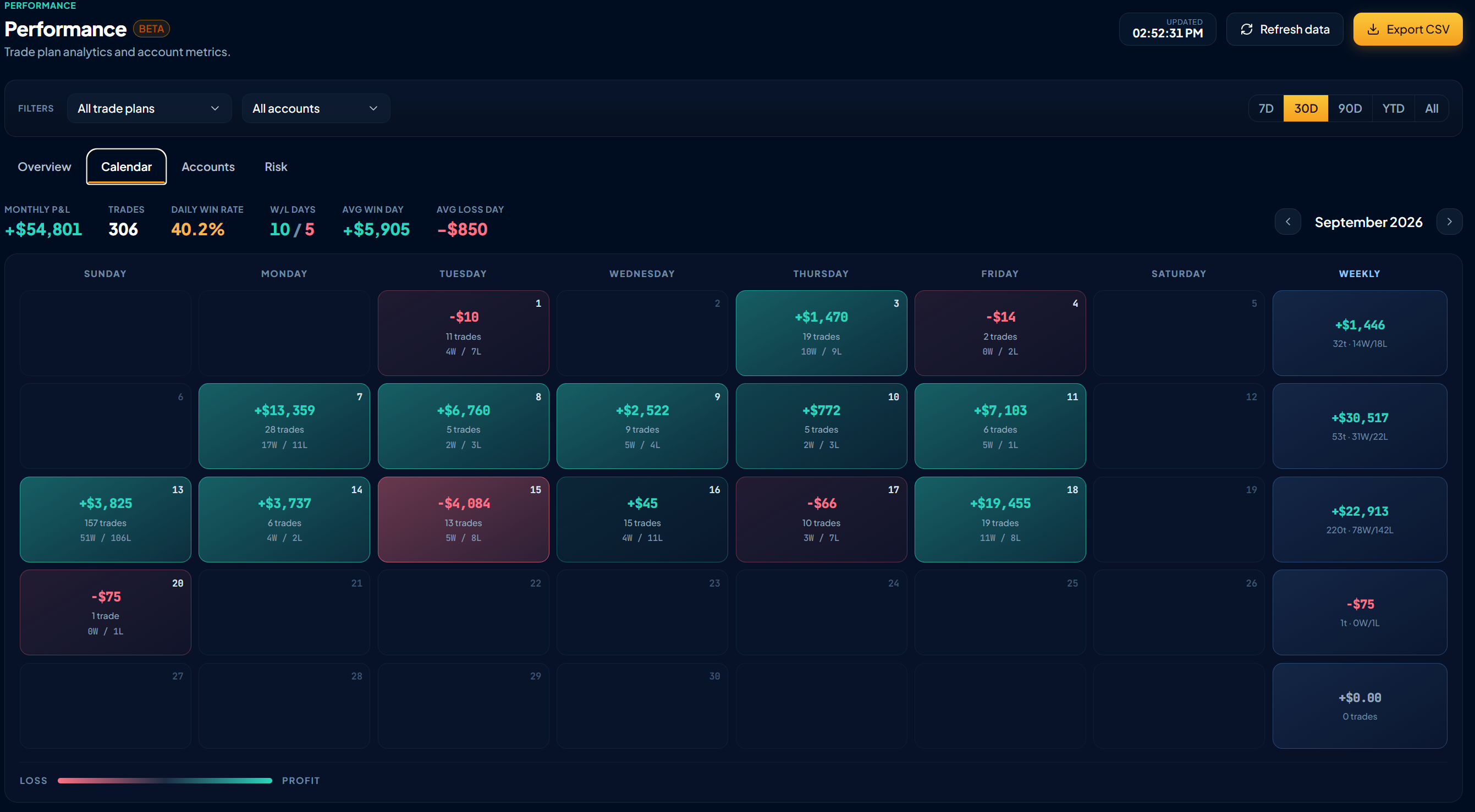
Calendar Daily Performance view

Performance Drawdown View

Know how deep a losing streak can go and how long it takes to recover, so you can size positions with real numbers instead of a gut feeling.
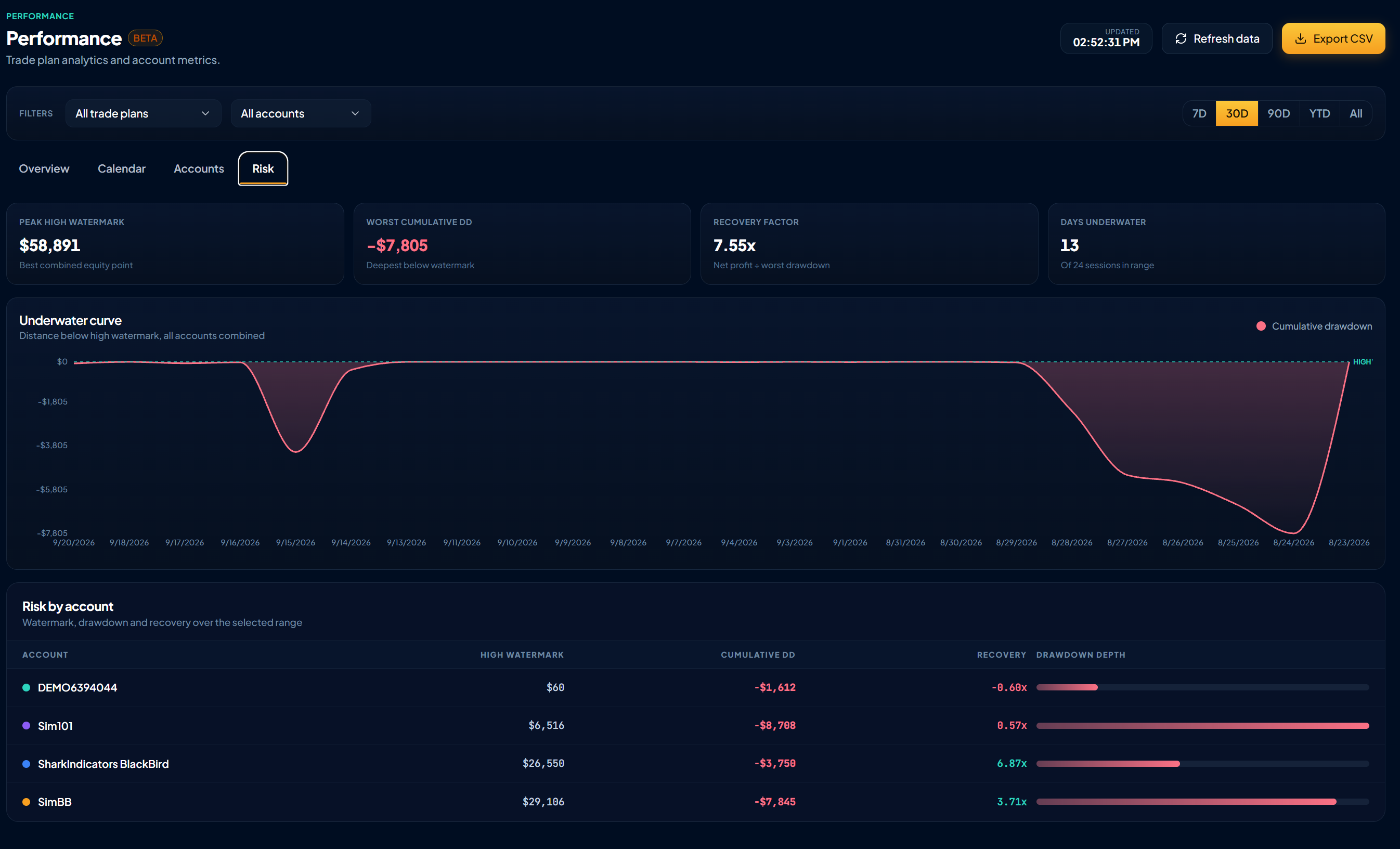
Drawdown view

Performance Account View

Compare how each account or strategy is actually performing side by side, so you know which ones to scale up and which to cut.
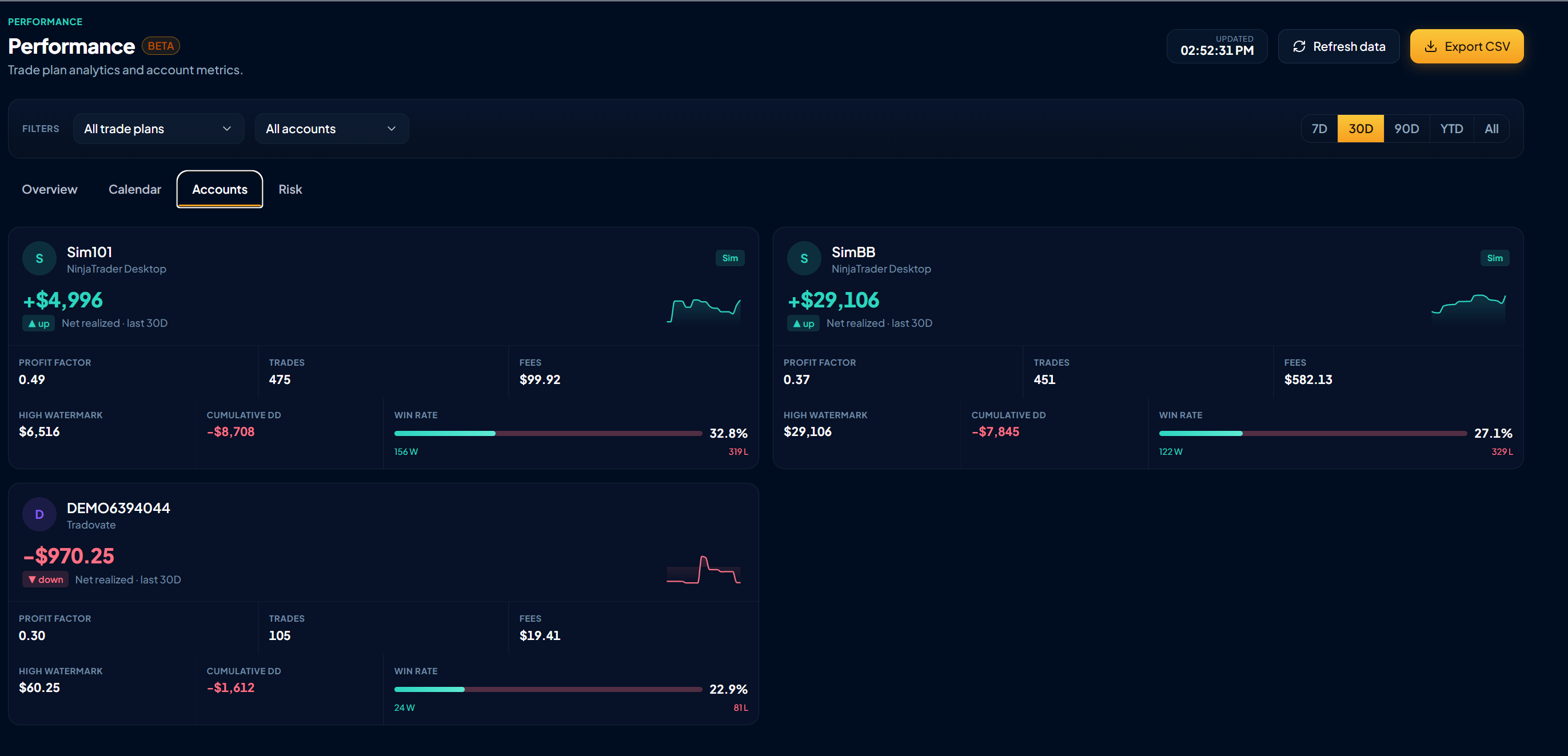
Trades View

Get the full paper trail on every closed trade — entry, exit, and why it closed — so you can audit a bad day or prove out a good one.
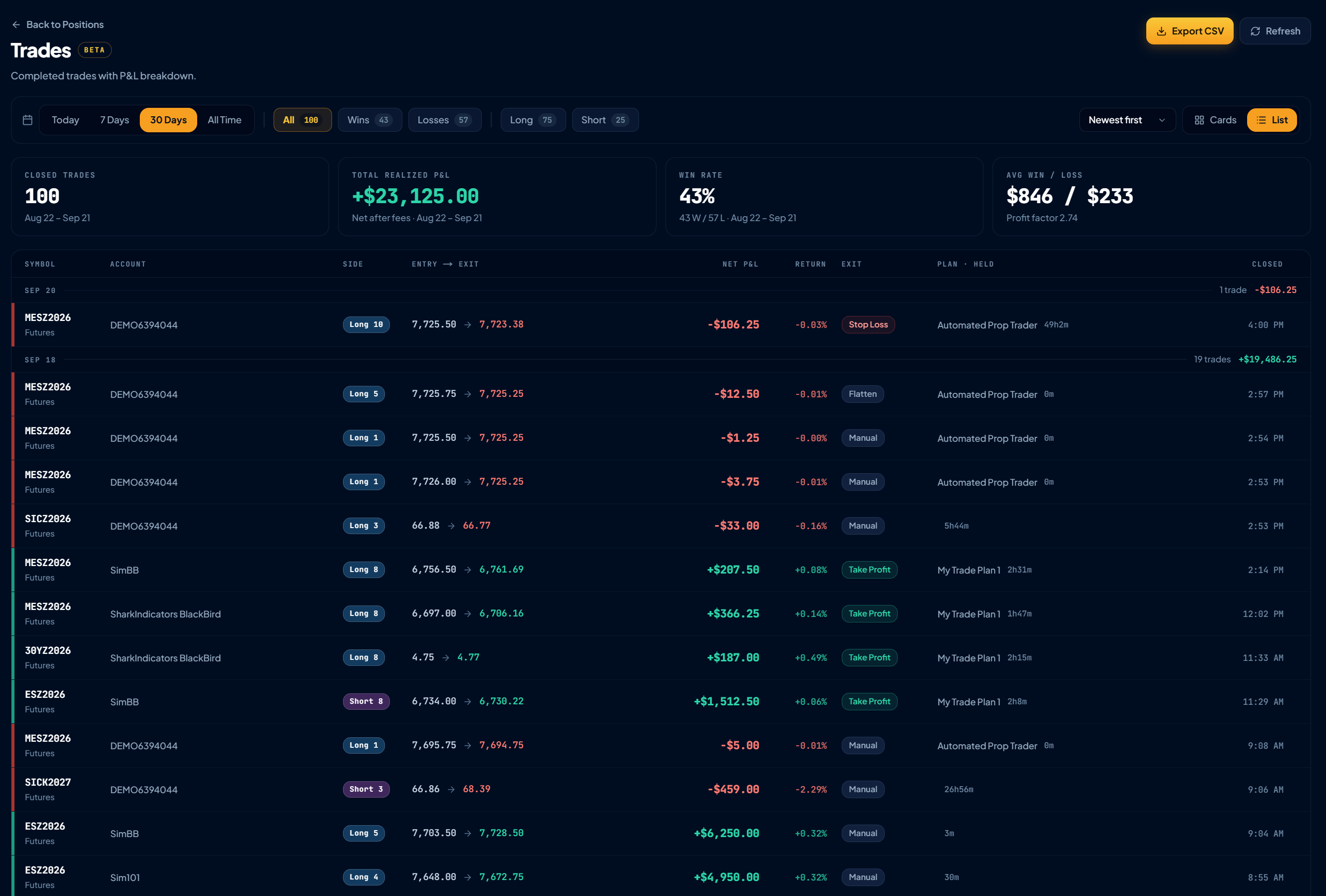
Per Trades View

Tradovate is Now Fully Live

Tradovate support is out of beta and available to everyone — no more waitlist or gating. Since the beta:

  • Futures contracts now roll to the front month on the calendar automatically, so you're never left trading a contract that's about to expire.

  • Live account streaming is more resilient — session tokens refresh proactively and heal automatically if one goes stale.

  • The broker connect flow was smoothed out end to end.

Note: To run Prop Firm challenges and accounts (included funded accounts) you must select “Demo” when adding the Tradovate Broker.
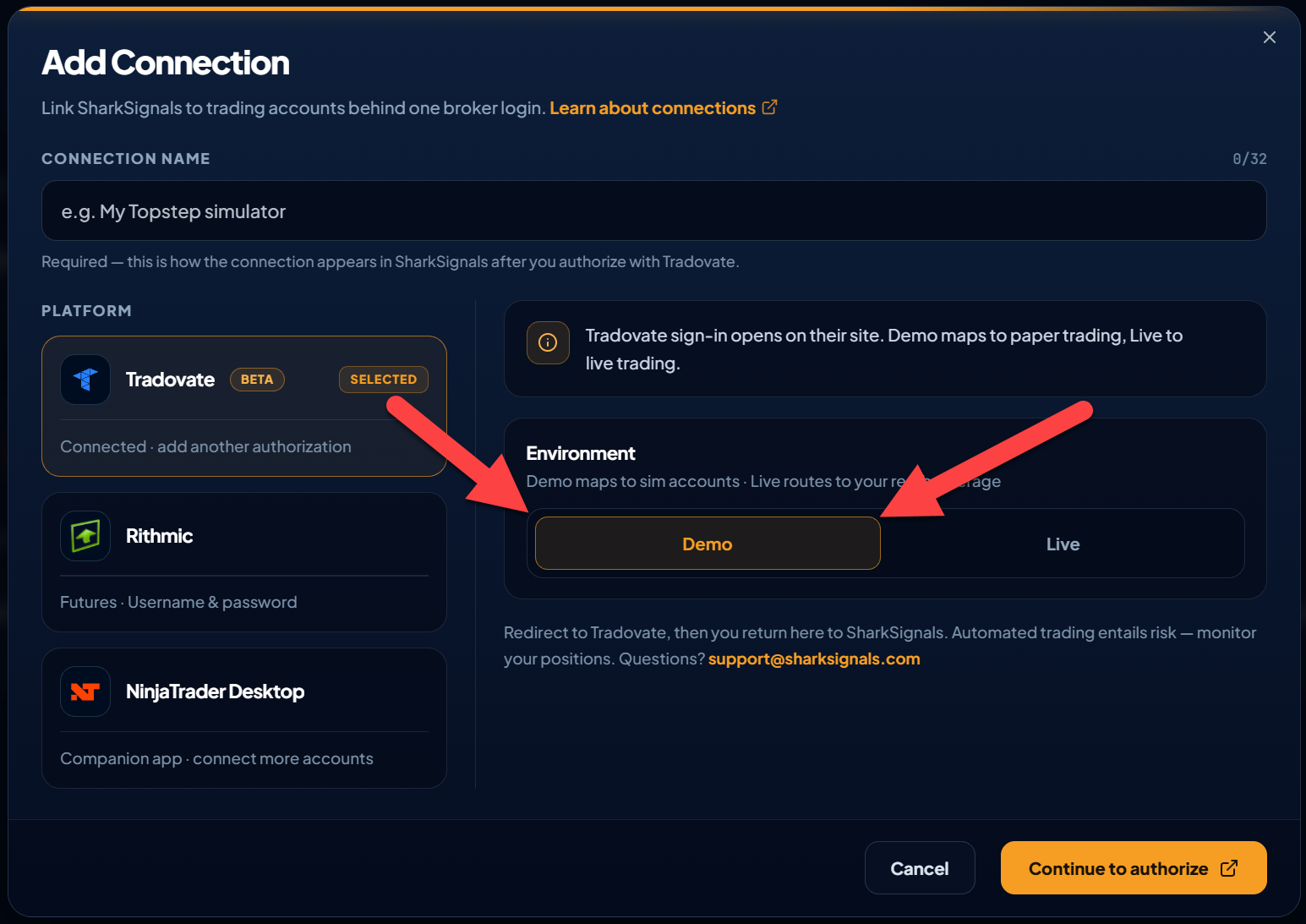
Trading on Tradovate prop firm accounts in SharkSignals is completely FREE for a limited time!

New Beta Feature

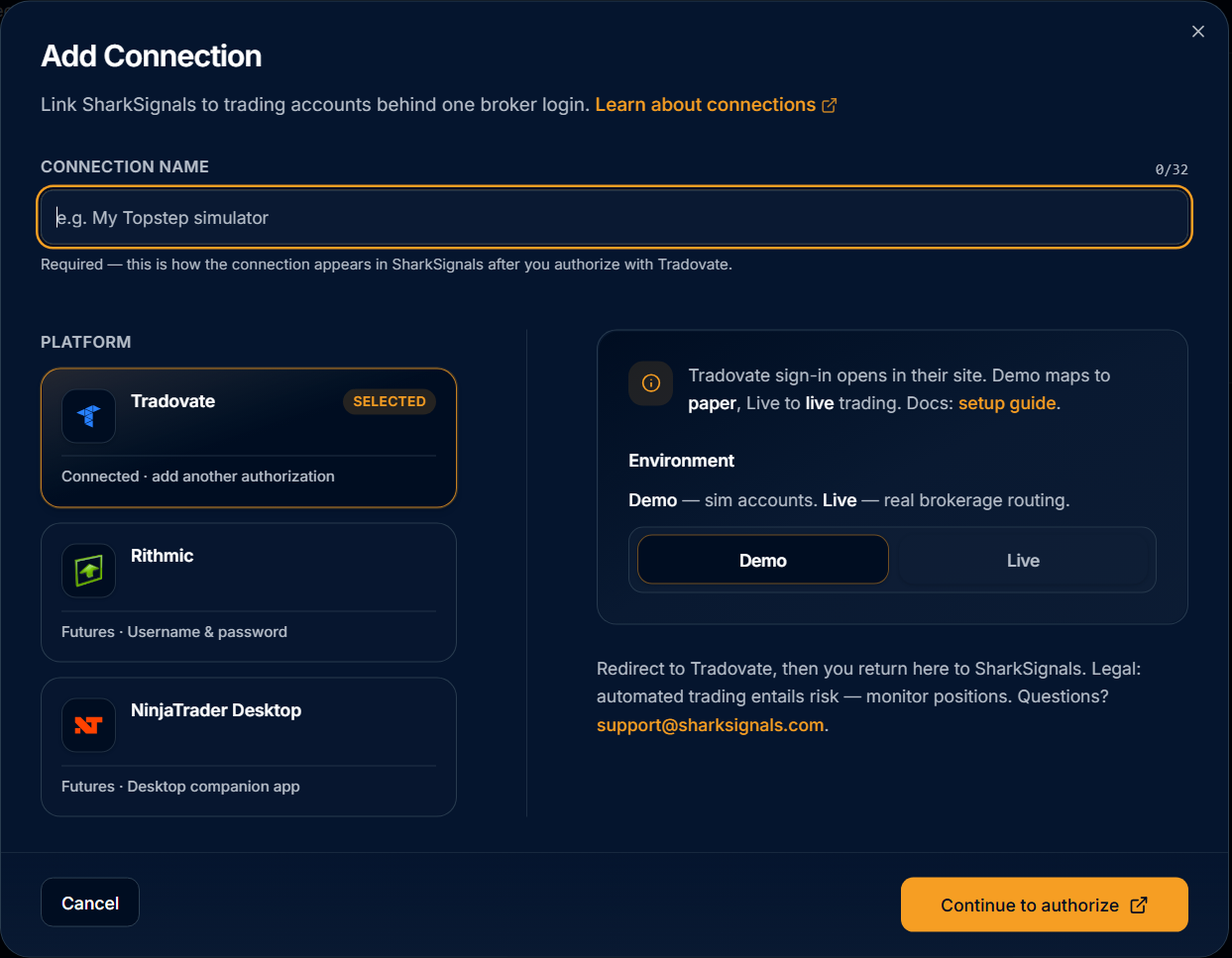
Connecting your broker to SharkSignals is getting easier and more flexible. In this update, we walk through how to link your brokerage accounts—and take a look at a new Beta Feature that unlocks support for Tradovate.

Here is the breakdown of how to enable and configure the feature:

What’s New: Tradovate Integration (Beta)

We are rolling out support for Tradovate as an optional Beta Feature! This allows you to route incoming trading signals directly to your Tradovate accounts (both Live and Demo) using native OAuth authentication.

How to Enable the Beta Feature

  1. Activate Beta Features in Settings:

    • By default, the Tradovate broker option and the Add Broker button may appear greyed out or disabled.

    • To enable it, navigate to your Settings / Profile area in SharkSignals and toggle on Enable Beta Features.

    • Once enabled, the Tradovate connection option will unlock on the Brokers page.

  2. Add Your Tradovate Connection:

    • Go to the Brokers tab on the left navigation bar and click + Add Broker.

    • Select Tradovate under the list of supported platforms.

    • Enter a custom connection name (e.g., "My Trader Account").

    • Select your target environment (Demo or Live).

  3. Authenticate & Connect:

    • Click Continue to Authorize.

    • You will be redirected to Tradovate’s secure login portal (or sign in via Google / Apple).

    • Grant SharkSignals permission to read profile, account, and execution data.

    • Once authorized, you’ll be routed back to SharkSignals with a connected status message!

Other Supported Broker Connections

In addition to Tradovate, SharkSignals continues to support multiple execution and broker connections:

  • Rithmic: Connect directly using your Rithmic credentials (including Rithmic Paper Trading or Rithmic Test environments).

  • NinjaTrader Desktop: Connect via the downloadable SharkSignals Desktop Companion App to automatically sync NinjaTrader accounts and trades.

Try It Out

If you'd like to help test the Tradovate integration before its general release, enable Beta Features in your account today and let us know your feedback!

July UI Improvements

We've been busy shipping improvements across Trade Plans, Signals, and account management. We’ve been hard at work laying the infrastructure for Tradovate, TradingView strategy synchronization and custom signal payloads. Here's what's new.

Trade Plan & Signal Improvements

Never lose unsaved changes. The Keep / Discard / Save prompt now reliably appears any time you make edits to a Signal, Trade Plan, or Account node — so you'll never accidentally navigate away from unsaved work again.

Faster Manual Trades. The Flatten button in Manual Trade now enables as soon as you've selected a Symbol and Asset Class — no need to also enter a quantity, since Flatten doesn't require one.

Reversing and Scaling, now visible. Trade Plan nodes now clearly display when "Allow Reversing" and "Allow Scaling" are enabled, so you can see your configuration at a glance instead of digging into settings.

Clearer "required field" indicators. We've replaced the red asterisk with an explicit "Required" label next to fields that must be filled in, making it much easier for new users to spot what's missing when setting up a Signal.

Stronger call-to-action for incomplete setups. Trade Plan nodes that need attention — whether from a newly added Signal, an unconfigured Bracket, or a disabled state — now use bolder visual cues (color, outline, and warning text) so it's obvious when a plan isn't fully ready to trade.

Better Signal color selection. The Signal color picker no longer allows light background colors that made white text difficult to read. Preset light colors have also been swapped for darker, more legible options.

Account & Subscription

Smarter subscription prompts. The subscription management screen now correctly checks free trial eligibility — showing "Start Free Trial" and trial messaging for eligible users, and "Upgrade Now" (with no trial messaging) for everyone else.

New: AI Skill for Signal Firing

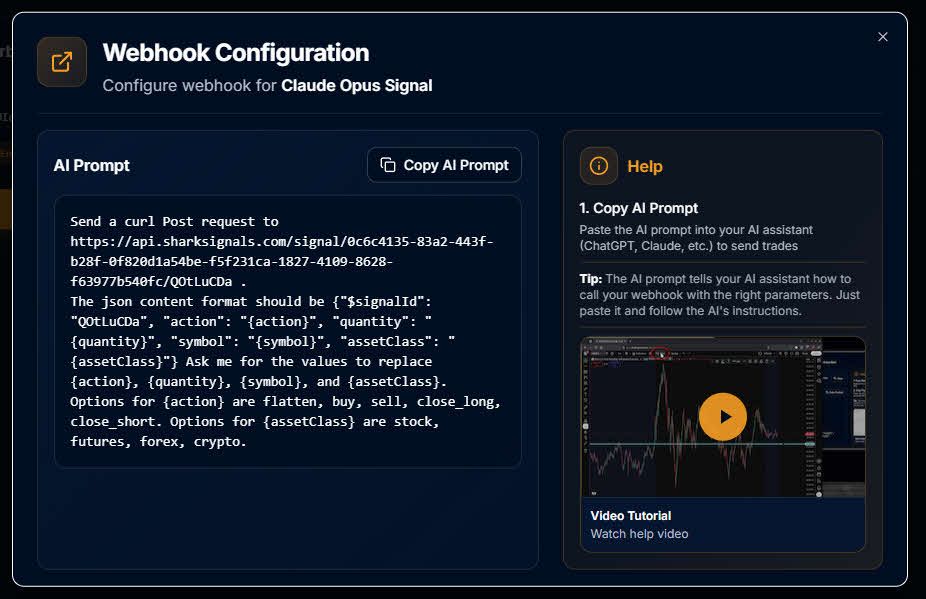
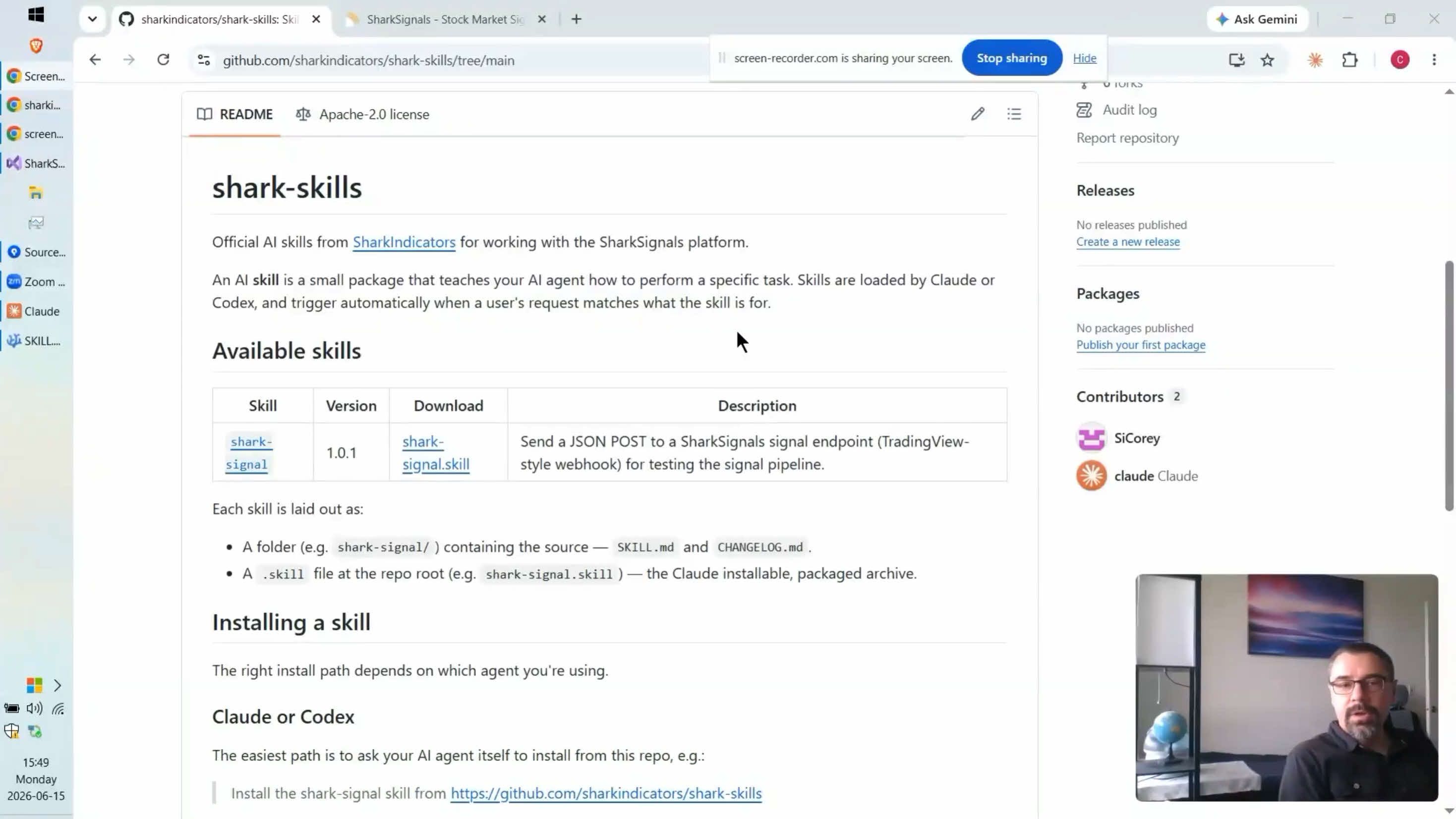
We've published a SharkSignals AI Skill that lets you fire off a Shark Signal directly from your own AI agent. It's available now for anyone building automated or agent-driven workflows on top of SharkSignals.

To learn more about the AI skill you can check out a video we made about it here: 

https://youtu.be/ecsaxsMqVYo?si=FpIZYvQ1DhvJgCHe

Bug Fixes

  • Fixed an issue where "Allow Scaling-in" was not being respected by BlackBird, causing it to scale in even when the setting was turned off.

  • Fixed a related issue where "Allow Scaling-in" was ignored for both ATM and BlackBird trades when account-level overrides were disabled.

  • Fixed a bug where the trade engine could continue using deleted brackets, causing trade plans with removed brackets to behave unexpectedly.

  • Fixed an issue where short selling did not execute correctly.

  • The NinjaTrader Desktop client now detects when its window is closed and disables trading — previously, trading could continue silently in the background with no visible client window.

  • Improved detection and handling for NinjaTrader Sim account position mismatches, particularly after flattening a Sim account while disconnected from a data feed.


As always, thank you for trading with SharkSignals. If you run into anything unexpected with these updates, reach out to support and we'll take a look.

Earlier updates